Nero AI Video Upscaler
Share
Nero AI Video Upscaler
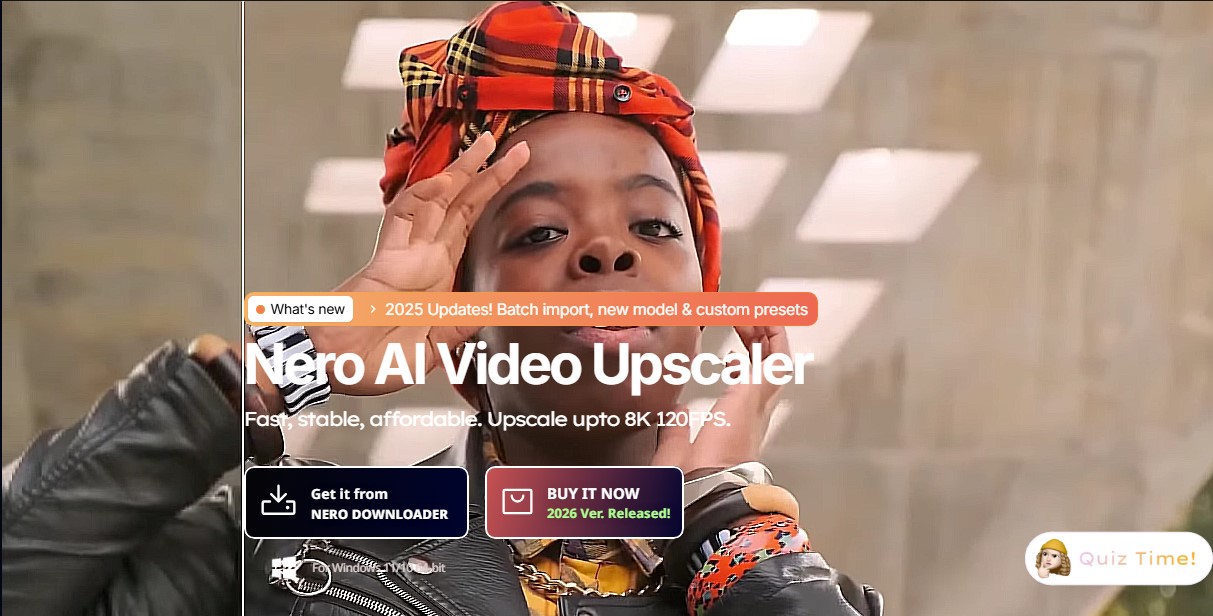
Upscale videos to 8K and 120 FPS with AI. Restore old footage, enhance faces, and batch process files with professional quality.
General Information about Nero AI Video Upscaler
Nero AI Video Upscaler is an advanced AI video upscaling software tool designed specifically for Windows 10 and 11 users. Its primary function is to boost video file resolution up to 8K quality while simultaneously enhancing the sharpness and detail of the original footage. This application is positioned as an accessible and efficient solution for content creators, editors, and home users who need to restore vintage videos or improve the quality of modern content.
The tool’s core technology is built upon six specialized AI models, each optimized for a specific purpose:
- Fast: Designed for quick results on projects with tight deadlines.
- Animation: A model optimized for anime and cartoons, capable of delivering superior sharpness compared to conventional upscalers.
- Realistic: Focused on enhancing live-action footage while maintaining the fidelity of original textures.
- Versatile: Provides a balance between enhancement and smoothing, ideal for various types of content.
- Face Enhancement: A dedicated algorithm for recovering and defining facial details in recordings where faces are not sharp.
- Restoration: A new feature aimed at reviving very low-quality videos or old files, recovering fine textures lost to time or compression.
In addition to upscaling resolution, Nero AI Video Upscaler incorporates AI frame interpolation. This technology analyzes motion between frames to generate additional frames, allowing users to increase the frame rate up to 120 FPS. The result is significantly smoother motion, eliminating image stutter. The software also enables video color adjustments, controlling parameters such as brightness, contrast, saturation, and white balance to optimize visual clarity.
Regarding productivity, the tool streamlines the workflow through batch processing, allowing for the simultaneous import and editing of multiple files. Users can utilize real-time preview to compare the original video with the enhanced version before the final export. Additionally, it allows users to save custom presets to apply specific configurations repeatedly.
For optimal performance, the application leverages GPU acceleration and is compatible with NVIDIA GeForce and AMD Radeon graphics cards. It supports common file formats such as MP4, MOV, AVI, and WMV. The usage process is straightforward: simply drag the file onto your PC, select the AI model and desired output resolution, and start the automated enhancement process. It is a practical alternative for those seeking high-quality results without the technical complexity of other professional editors.
Features and Use Cases of Nero AI Video Upscaler
How Nero AI Video Upscaler Works
Frequently Asked Questions about Nero AI Video Upscaler
What are the system requirements for Nero AI Video Upscaler?
To use the program, you need a 64-bit Windows 10 or 11 PC with at least 8 GB of RAM and a compatible NVIDIA or AMD graphics card.
Can I try Nero AI Video Upscaler before I buy it?
Yes, a seven-day free trial is available with all features unlocked and no credit card registration required.
What types of AI models are included in the tool?
The software offers six distinct models specialized in animation, realistic footage, facial enhancement, old video restoration, a versatile general-purpose model, and a high-speed option.
Does Nero AI Video Upscaler allow for batch processing?
The application includes batch import and processing features that allow you to upload and enhance multiple video files simultaneously and automatically.
How does the real-time preview work?
This feature allows you to see a side-by-side split-screen comparison between the original video and the enhanced version before rendering the final file.
Can I improve video smoothness with Nero AI Video Upscaler?
Using AI frame interpolation technology, you can increase the frame rate up to 120 FPS to achieve much smoother motion.
What video formats does the software support?
The program is compatible with the most widely used formats, such as MP4, MOV, AVI, and WMV, and allows you to export results in resolutions up to 8K.
Can I save my own settings in Nero AI Video Upscaler?
The tool allows you to create and save your own custom presets so you can apply your favorite configurations to future projects with a single click.
Nero AI Video Upscaler Pricing
Free Trial and Limited Use
Free.
- 7-day trial with access to all features; no credit card required.
- Free upscaling for videos under 30 seconds using 4 advanced AI models.
Nero AI Video Upscaler (Lifetime License)
195 $ (VAT included).
- Batch processing to manage multiple videos simultaneously.
- AI frame interpolation to reach up to 120 FPS.
- GPU acceleration for enhanced stability and speed.
- Real-time quality preview.
Nero AI Bundle (Annual Subscription)
107,92 $ (VAT included).
- Includes Nero AI Video Upscaler and Nero AI Image Upscaler.
- 1 year of free updates.
- Professional photo and video enhancement for Windows PC.
Nero Platinum Suite 2026
49,95 $ (VAT included).
- Includes over 20 programs from the Nero suite.
- Integrated AI tools for editing and optimization.
- Comprehensive features for burning, managing, and editing photos, videos, and music.
Business Plan
Check the official website.
- License specifically designed for commercial use.
Nero AI Video Upscaler Screenshots