
Screen Story
Share
Screen Story
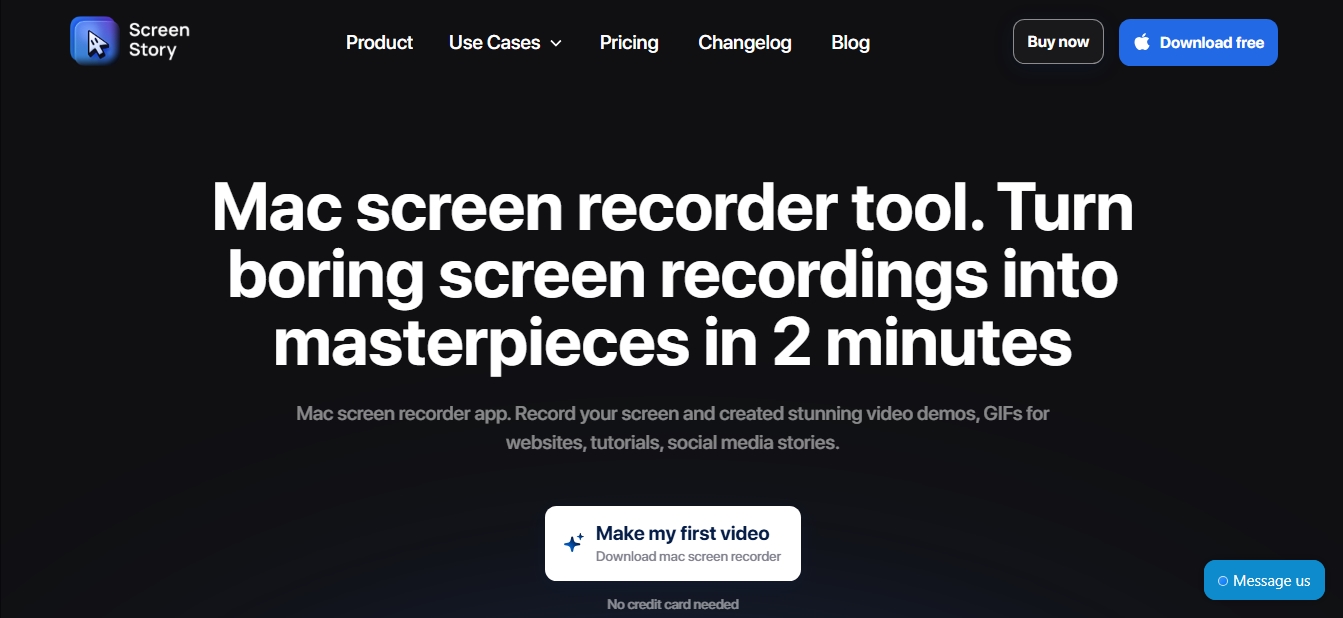
Record your Mac screen to create professional demos with auto-zoom and cursor smoothing. Generate high-quality videos and GIFs with no editing skills required.
General Information about Screen Story
Screen Story is an advanced screen recorder designed exclusively for macOS that allows you to transform standard recordings into high-quality audiovisual content in just a few minutes. This tool is geared toward entrepreneurs, designers, developers, and content creators who need to produce product demos, tutorials, or social media videos without needing complex technical video editing skills. It positions itself as an efficient alternative to basic tools or professional post-production software that comes with a steep learning curve.
The software stands out for automating editing processes through the use of smart design patterns. When capturing your computer screen, Screen Story automatically applies dynamic zoom that detects user actions on the screen to enlarge areas of interest. Likewise, it features cursor smoothing technology, which converts erratic mouse movements into fluid, aesthetic transitions, significantly improving content readability for the viewer.
Key features and functional benefits include:
Webcam and microphone recording: Allows you to integrate a selfie box with smooth animations to switch focus between the presenter and the screen content.
Integrated teleprompter: Makes it easy to read scripts or notes during recording via a window that remains invisible in the final capture.
Visual customization: Users can choose from various backgrounds and window frames, and apply motion blur to achieve a cinematic finish.
Non-destructive editing: Includes tools to easily trim, split clips, and adjust the speed of specific segments.
Mobile optimization: Features a vertical export mode that automatically adjusts zooms to ensure optimal viewing on mobile devices.
External device capture: Supports recording from external monitors and is compatible with the iPhone simulator for mobile app demonstrations.
Screen Story operates locally, allowing for video processing without an internet connection, which enhances privacy. Files can be exported in high-resolution formats like 4K at 60 FPS or converted into optimized GIFs for insertion into websites or emails. Additionally, it offers the option to copy the video directly to the clipboard or generate cloud links to share the results instantly with clients or collaborators. It is a comprehensive solution for professionalizing visual communication and streamlining the workflow for creating digital assets.
Features and Use Cases of Screen Story
How Screen Story Works
Frequently Asked Questions about Screen Story
What is Screen Story and what is it used for?
It’s a Mac application that allows you to record your screen and create professional videos with automatic zoom and smooth cursor movements in just a few minutes.
Can I try Screen Story for free?
Yes, you can download the tool and make your first recording without having to provide any credit card information.
Do I need prior video editing skills?
No, the app automatically applies design styles and transitions so you don’t have to edit the content manually.
Is Screen Story available for Windows?
Currently, it is exclusive to macOS, but you can sign up to be notified as soon as the Windows version is released.
Does Screen Story work without an internet connection?
Yes, you can use all recording and editing features locally on your computer without needing to be online.
Does the tool allow you to record your webcam and screen at the same time?
Yes, you can record your face and screen simultaneously with professional animations and built-in teleprompter support.
What export options does Screen Story offer?
You can export your projects in MP4 or GIF format with up to 4K quality at 60 frames per second for easy sharing.
Is it possible to create vertical videos for social media?
Yes, the tool automatically adjusts zooms and framing to optimize the viewing experience on mobile devices.
Screen Story Pricing
Free Version
Free. Download the tool and try out its recording and editing features on Mac—no credit card required.
Monthly Pass
$19 per month.
Full access for 30 days.
All features included (auto-zoom, smooth cursor movement, teleprompter).
Unlimited exports.
Priority support.
Secure on-device rendering.
4K recording and export at 60 FPS and GIF format.
Yearly Pass
$89 per year.
Full access for 1 year.
All features included (custom backgrounds, portrait mode, motion blur).
Unlimited exports.
Priority support.
Secure on-device rendering.
Advanced editing tools such as trim, split, and AI captions.
Screen Story Screenshots